
CMS Guide 2018/10/16
CMS
Pages
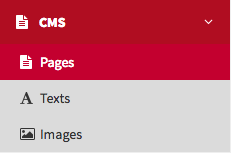
In Pages you can edit the basic pages of the website. Most of them are top-level pages that
serve as containers for content located in other sections, such as Ranges, Home Ranges or
Products. There are others like Contact forms and Where to buy pages that can be edited
here and selected as a link from other pages.
Remember, it’s essential to stay on
brand. Whether you’re adding new images or writing content, always refer to the style guide when updating the website.
Home
Home is the website’s homepage. In this section you will see the following fields:

Name
This fields is filled automatically.
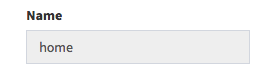
Prefooter
Select a module to display at the end of the homepage, above the
footer. You can choose from Contact us or Where to buy.
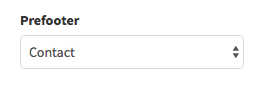
Title
This is the title for the browser tab.
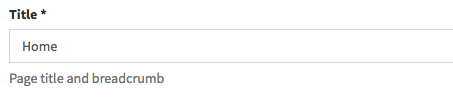
Slug
The part of the URL which identifies the page. On the homepage, the
slug must always be / without any other text. If you add text to the slug e.g. /home the
page will generate a 404 error. In this way, you can set any page as homepage by using / as
its slug.
Page Texts
These are page-specific text elements. The fields you will see are:
News Title
News headline.
News Subtitle
News headline subtitle.
More News
Button text for link to more news.
Contact Text
Page-specific contact message.
Page Elements
Under this tab there are three default elements: Slider, In your home and In your business. You can’t add new ones here.
Slider
Click on the Edit button.
Here you can edit the Slider content. You can also add new Slider
elements.
Click on Edit and you will see the following fields:

Title
Add the title you want to show in the Slider.
Text
Add a short description for the slider element. This field is
mandatory.

Link Type
Choose between an external or internal link for the information
page.
If you choose external, you’ll need to add a URL:
Link Text
Descriptive text for the link that leads to the information page.
Link URL
Add the full URL for the link to the external information page.
Open a new Tab
Set whether the information page opens in a new tab or not.
If you choose internal, you will need to pick a website page from a dropdown list:
Link Text
Descriptive text for the link that leads to the information page.
Link to... (page type)
Choose the page type.
Link to... (page)
Choose the page type.
Image
To select the image for this element, click Choose file.
Select
the image you want then click on Save and back.
Create all the slider
elements you need and click on Save and back to save your updates.
In your home (under page-Home)
Go back to Page Elements.
Click on the Edit button.
You will see the following fields:
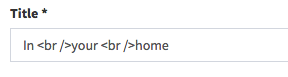
Title
The background title. If you need a line break you will need to add
<br /> where you want the text to break, as shown below.
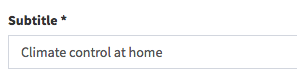
Subtitle
A short title displayed above this module’s text.
Text
The main description text.
Link Type
Choose between an external or internal link for the information
page.
If you choose external, you’ll need to add a URL:
Link Text
Descriptive text for the link that leads to the information page.
Link URL
Add the full URL for the link to the external information page.
Open a new Tab
Set whether the information page opens in a new tab or not.
page.
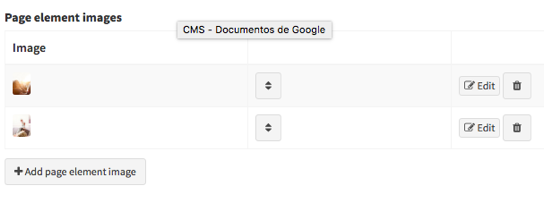
Now you will see two Page element images that you can edit. These are the
ranges displayed in the In your home section of the homepage.
Click on the
Edit button and you will see the following fields:
Title
The range name.
Subtitle
The section that includes this range, e.g. In your home.
Link Type
Choose between an external or internal link for the information
page.

For an external link type, you will need to add a full URL.
Link URL
Enter the full URL for the link to the external
information page.
For an internal link type you will need to select the
page type and page itself from the drop down lists.
Link to... (page type)
Choose the page type.
Link to... (page)
Choose the page type.
Next, click Choose file to select the range image. Then click on Save and
back.
You can include other ranges by clicking Add page elements.
Finally
click Save and back to save your updates.
In your business (under page-Home)
This module includes all the same fields as In your home, as well as some additional ones:
Image
A mandatory background image displayed behind the “HI” logo.
Page Element Images
Add and upload the images for the ranges in this section
by clicking on Edit.
In your home
This page displays a collection of themed ranges related to the home. On this page you can
change the Page Title that appears as a breadcrumb and in the browser tab.
You
only need to fill in the Title and the Slug fields for this section.
Title
This is the title for the browser tab.
Slug
The part of the URL which identifies the page. The Slug must be written
in lower case and use hyphens instead of spaces. If you leave this field empty the CMS will
automatically generate a slug using the Title field.
Example: in-your-home
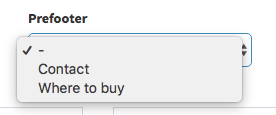
You can also choose between Contact and Where to buy for the prefooter modules.
In your business
This page shows a collection of themed ranges related to businesses. This page has the same fields and functionality as the In Your Home page.
Ranges
This page shows a collection of all the product ranges. You can edit the the page title and slug.
Where to buy
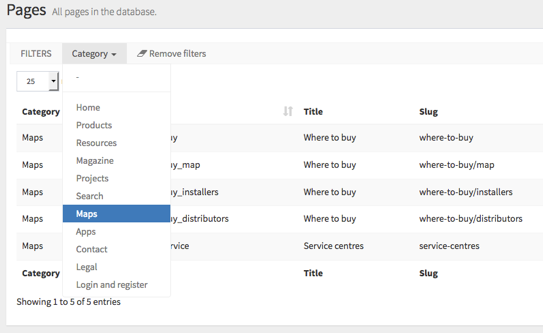
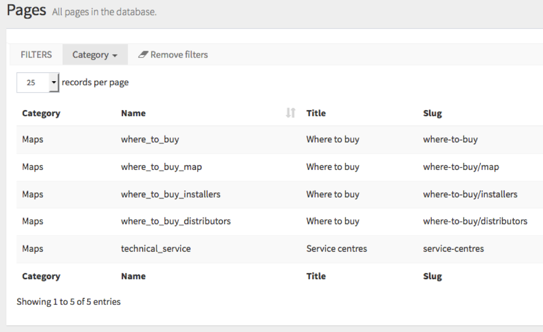
This is where users search for installers and distributors. It’s actually a series of pages
grouped by the same category: Maps. To view just these pages, you can use the Category
filter to select Maps.
Although each page can be edited individually,
together they form a group closely linked via internal navigation.
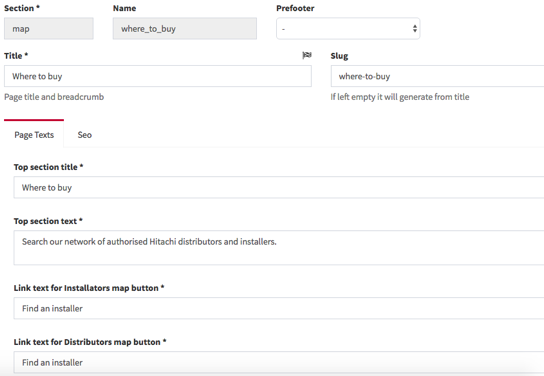
where_to_buy
Complete every field marked with an asterisk:
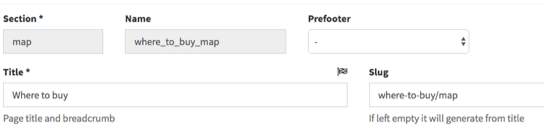
where_to_buy_map
You can only edit Title and Slug. Title will be used in the browser tab and as a breadcrumb.
where_to_buy_installers
You can only edit Title and Slug. Title will be used in the browser tab and as a breadcrumb.
where_to_buy_distributors
You can only edit Title and Slug. Title will be used in the browser tab and as a breadcrumb.
Technical_service
You can only edit Title and Slug. Title will be used in the browser tab and as a breadcrumb.
Resources
These pages contain a searchable archive of resources. You can only edit the prefooter,
except for the main resources page, where you can also edit Title and Slug.
Title will be used in the browser tab and as a breadcrumb.
The content
itself is located in the Resources section of the CMS.

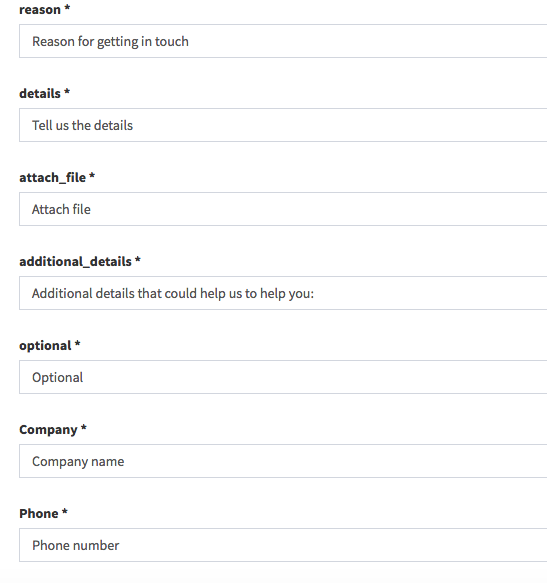
Contact
This is the Contact us page. The fields marked with an asterisk are mandatory.
You
can locate this page in many other pages by choosing it on the selector located in other
pages form.
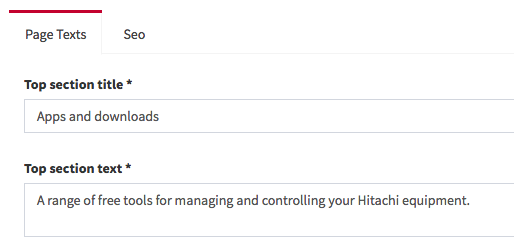
Apps
The Apps page is a collection of free software tools. As well as the Title and Slug, you can also edit the page headline (Top section title) and description (Top section text).
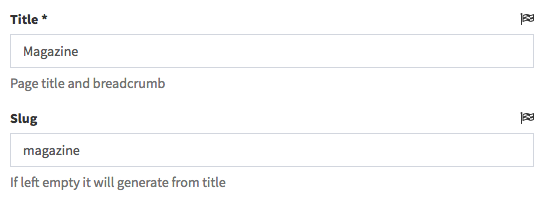
Magazine
The Magazine section displays a collection of news articles and the individual
articles themselves.
On the main Magazine page you can edit the Title, Slug,
and More News link text.
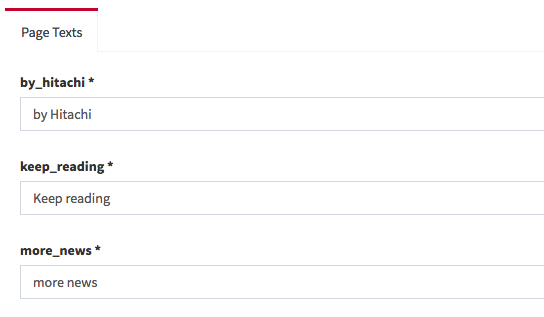
The Magazine_detail page is what you see if you click on an article. Here you can edit the generic page elements.
The magazine content itself is located in the Magazine section of the CMS.
Projects
The Projects pages contain articles about Hitachi installations. They functions in
much the same way as the Magazine pages.
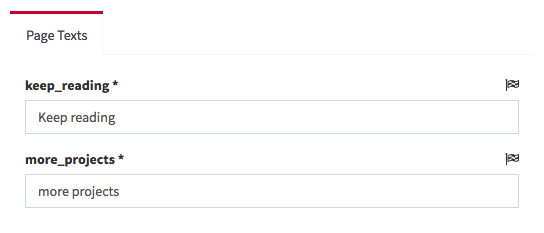
The Project_detail page
is what you see if you click on an article. Here you can edit the generic page elements.
The project content itself is located in the Projects section of the CMS.
Search
The site search and filtered results pages. On all of these you can only select the prefooter and edit the Title and Slug.
Legal, Cookie, Privacy Policy
These pages contain a text editor for including legal policies.
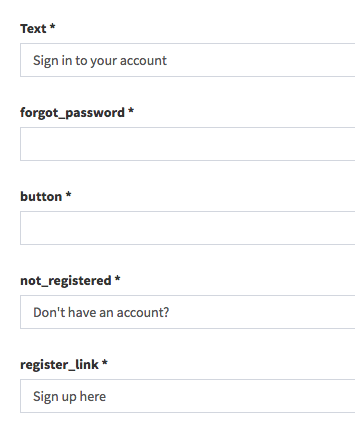
Login
On this page you can edit the text on the login form.
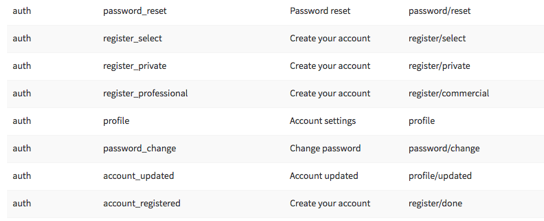
This is is one of several pages in the auth category that are part of the sign in and
registration process.
Some of these, like password_reset, generate emails. The email
text is edited in the CMS>Texts section.
Product
On this page you can edit the general title elements like titles that appear on each product page.
technical_data_title
Technical data background title that leads you to every
product technical data table.


technical_data_subtitle
The smaller foreground part of the technical data
title.
documentation_title
The main title for the product documentation section.


documentation_subtitle
The documentation section subtitle.

documentation_text
A description for the documentation section.

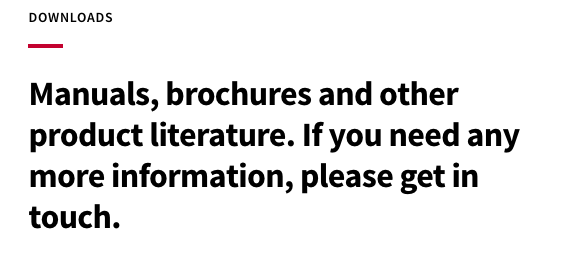
documentation_button_text
Text for the button that link to the download
page.

Texts
This section contains text elements, organised by category, that appear throughout the
website. It includes things like form field names, verification messages, menu names and
footer titles.
All texts must be provided and you should preview the relevant parts
of the website, like the main menu or footer, to check the texts are correct.
If you
want to select one specific category you can click on the category filter and the one you
want.
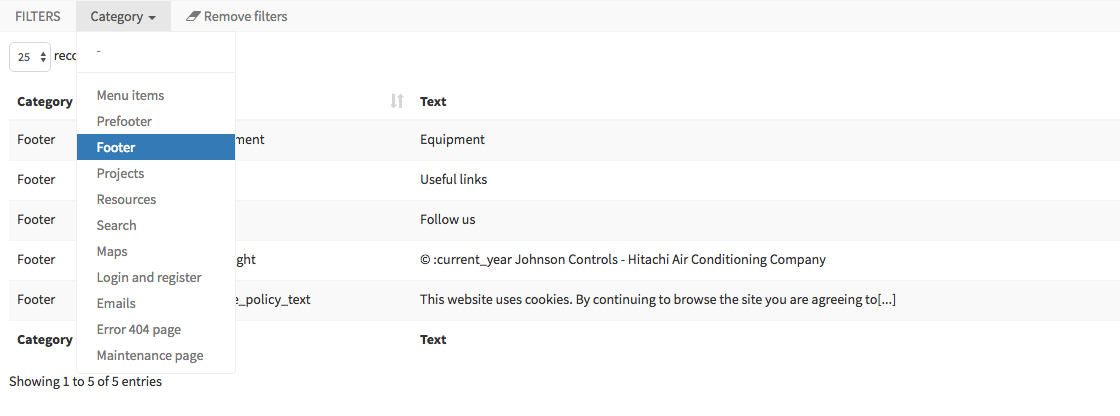
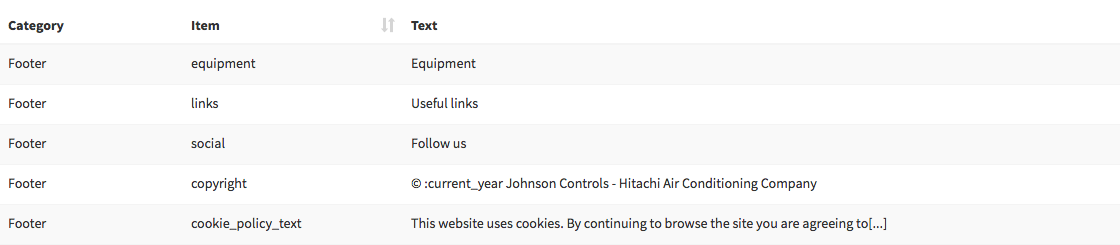
For example, the footer category includes titles for the website footer:
And the menu item category contains the main menu titles:
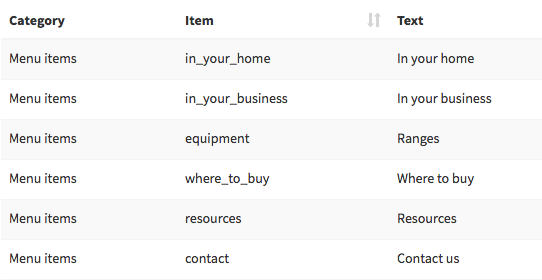
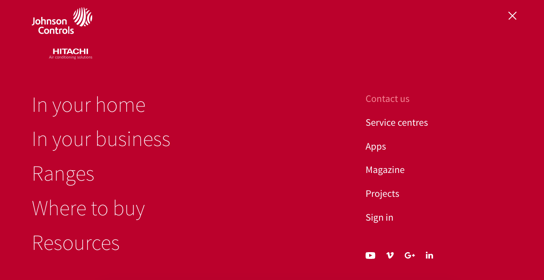
As well as website element texts, this section of the CMS also contains text for
response emails. These are emails automatically generated in response to actions like
completing the sign in process or requesting a password reset.
You can find these
texts under the Emails category filter.
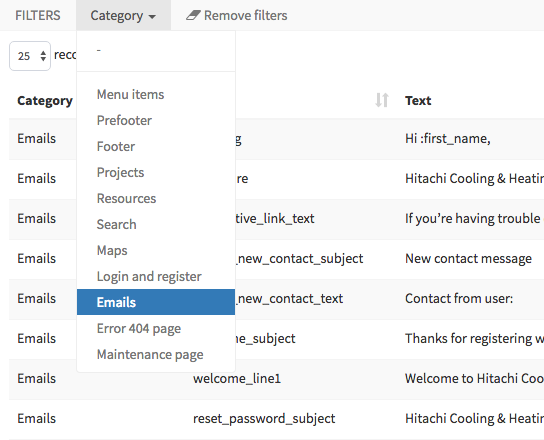
Reset password email texts:

Welcome email texts:

Images
Here you can upload images for the Contact and Where to Buy prefooter modules, as well as the contact page:
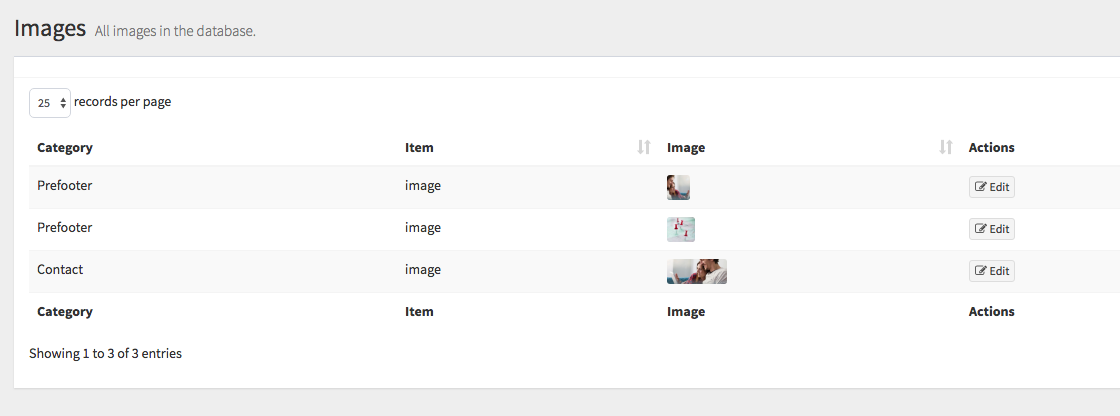
Remember, it’s essential to stay on brand. Always refer to the style guide when adding new images.