CMS Guide 2018/10/16
Introduction
CMS stands for Content Management System. It’s a system for adding and updating information
on your website. Once you’re familiar with the CMS it should be easy to use – you don’t
need to be a web developer!
This guide contains everything you need to know
about using the CMS. The guide’s structure reflects the CMS menus, so it’s easy to find the
information you need.
If you’re new to this, sign in to the CMS while you read
the guide. That will make it easy to directly reference what you’re reading about.
Whenever
you use the CMS, we recommend having the website open, so you can immediately view any
changes you make.
Important things to remember
Publish with care! Any changes you save in the CMS will be published on your live website.
So check and recheck before you click save!
Stay on brand! Whether you’re adding
new images
or writing
content, always refer to the style guide when updating the website.
CMS Sign in
To sign in to the CMS you need a username and password. You will find the details in the
newsletter we sent you.
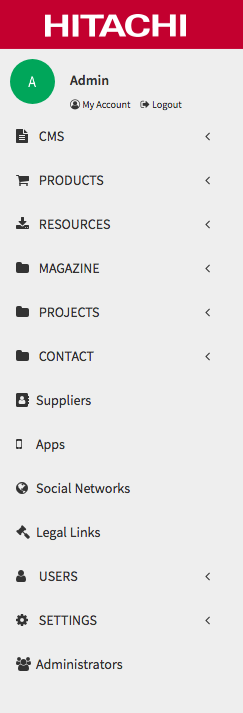
Once you are in you will see the different elements of
the CMS on the left-hand menu.
Left-hand menu
The basic structure of pages is provided, but you will need to create sections in the
Products section like new Ranges, Home Ranges, Business Ranges and new Products, if needed.
Other
sections where you can create new content are Resources, Magazine, Projects, Suppliers,
Apps, Social Networks, Legal Links, Users, Settings and Administrators.
The
first option you see in the left-hand menu is CMS. In this section you have three options:
Pages, Text and Images.