CMS Guide 2018/10/16
Distribution Page
This where you manage all the information for the Johnson Controls-Hitachi distribution page. The distribution page is a landing page which displays logos and links to our brands. You will only see this section if you manage the CMS of a country that allows you to have this page.
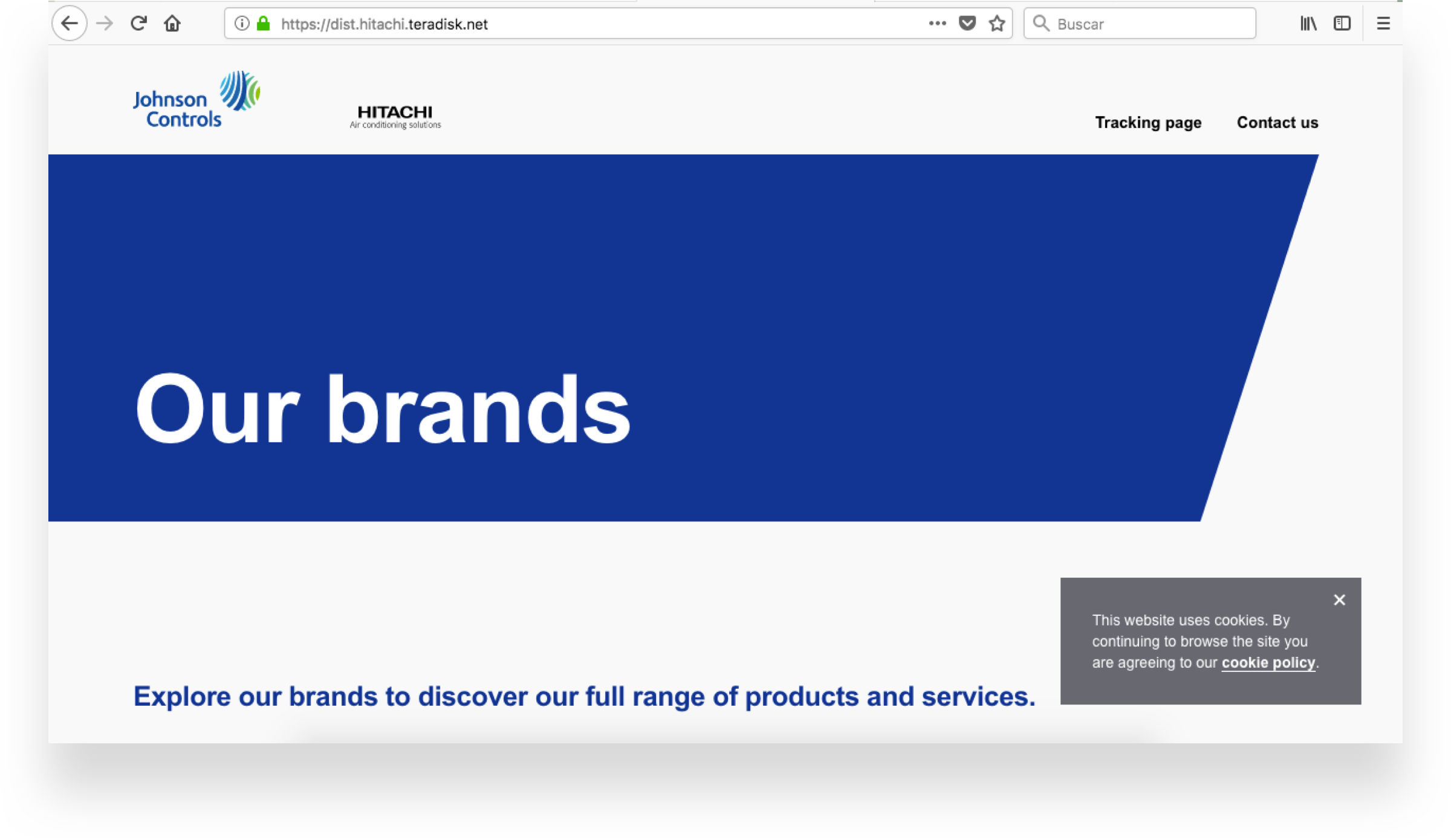
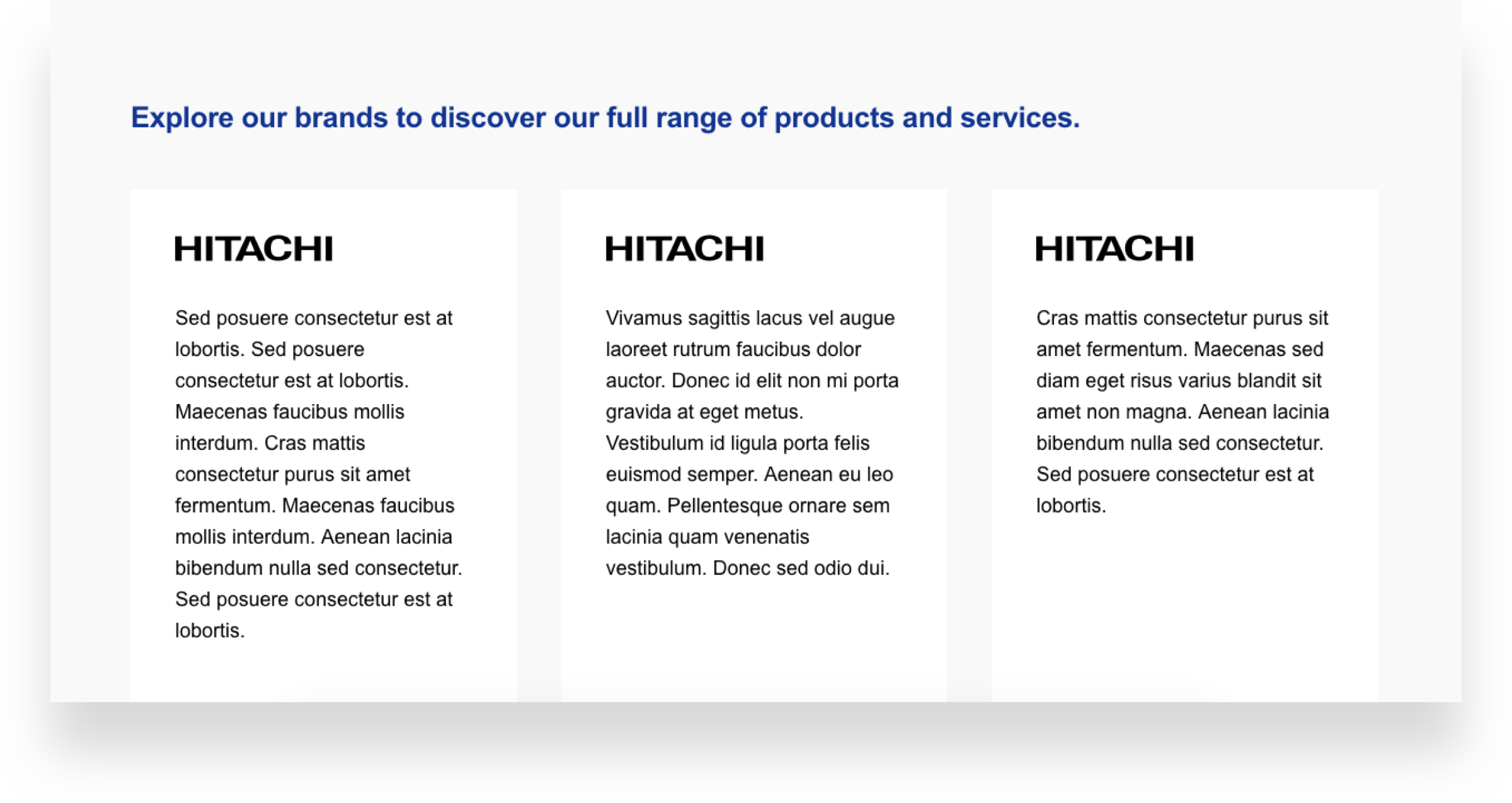
Distribution Page leads you to all the different brands associated with Johnson Controls-Hitachi in your country. Here you can review brand descriptions and find links to each brand-specific page.
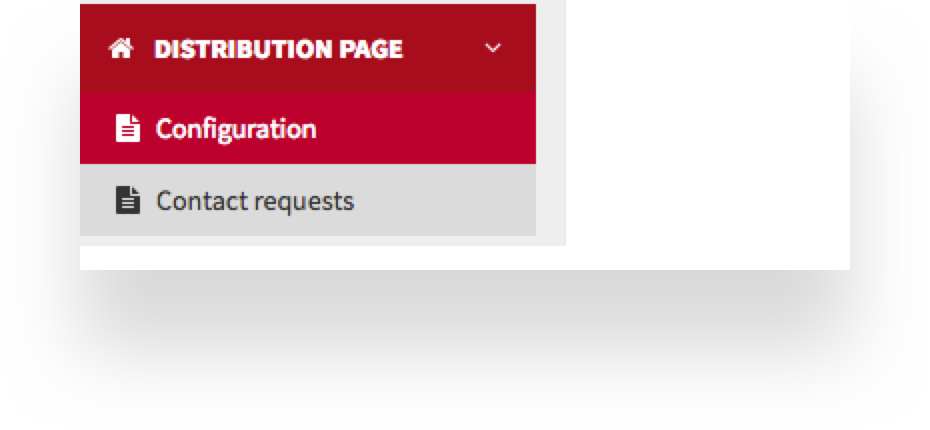
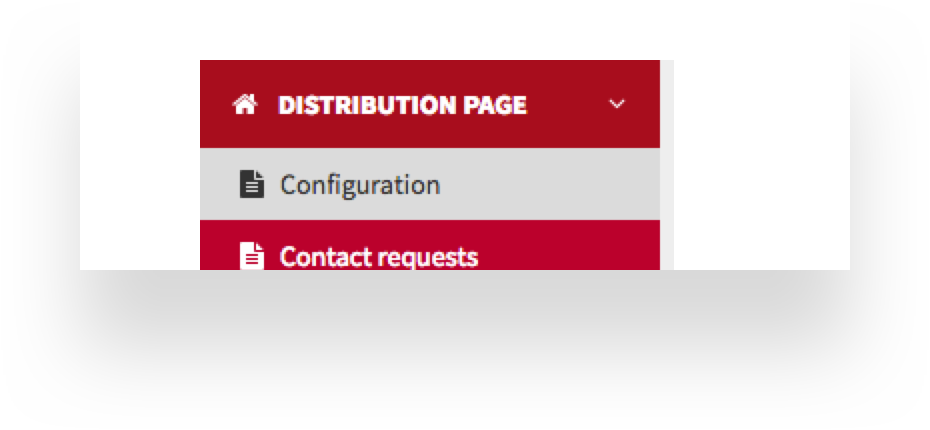
To manage this page content, go to the side menu and click on Distribution Page and go to Configuration:
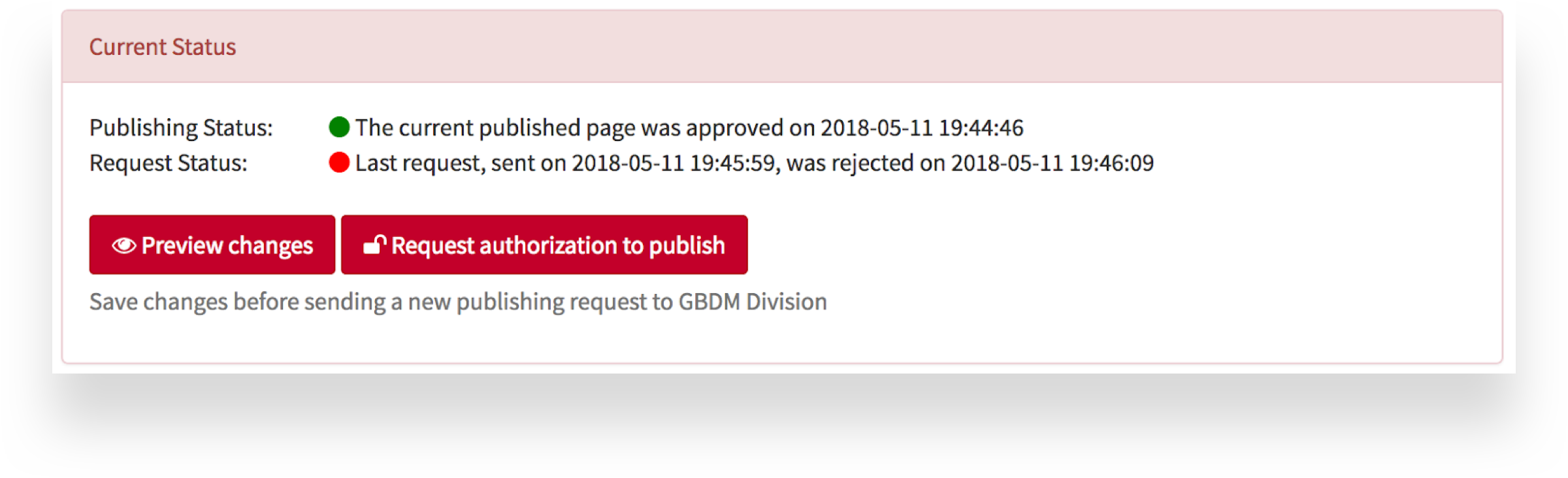
The first thing you will see is the Current publishing status:
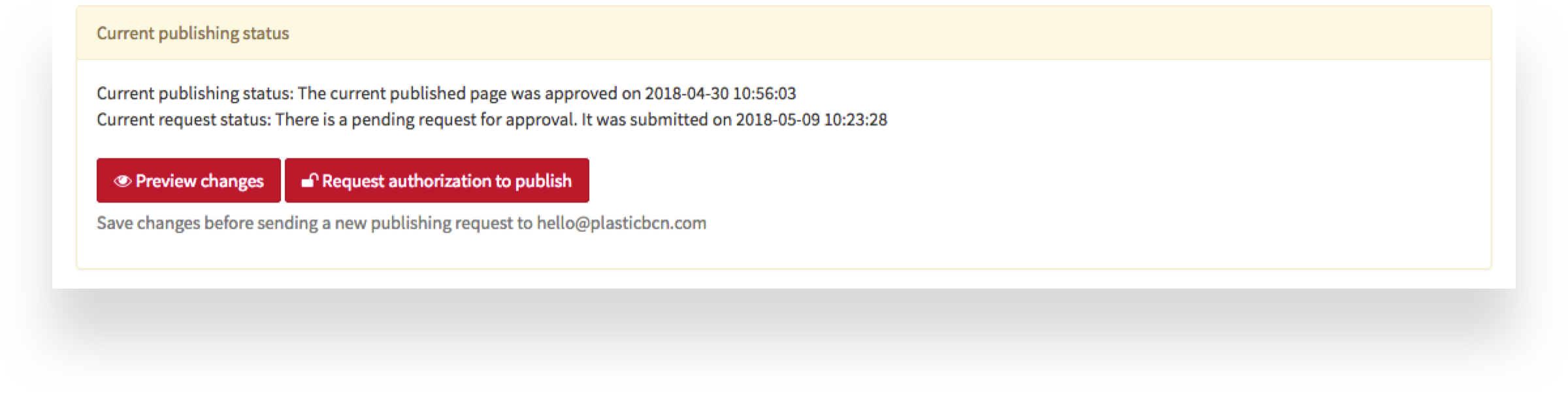
This message tell you the distribution page’s publishing status – when the page was
published and details of any pending approval requests.
Before a page or any
changes are published, you will need to submit an approval request to Hitachi Global
Branding & Digital Marketing Division.
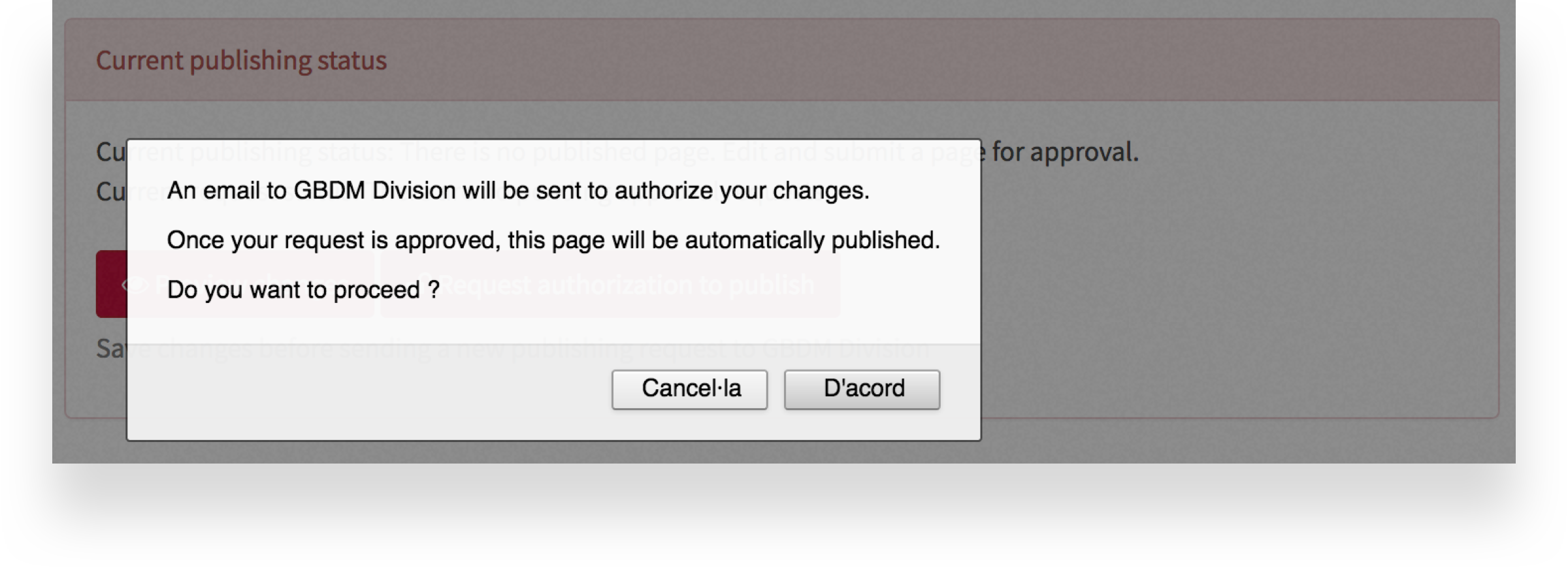
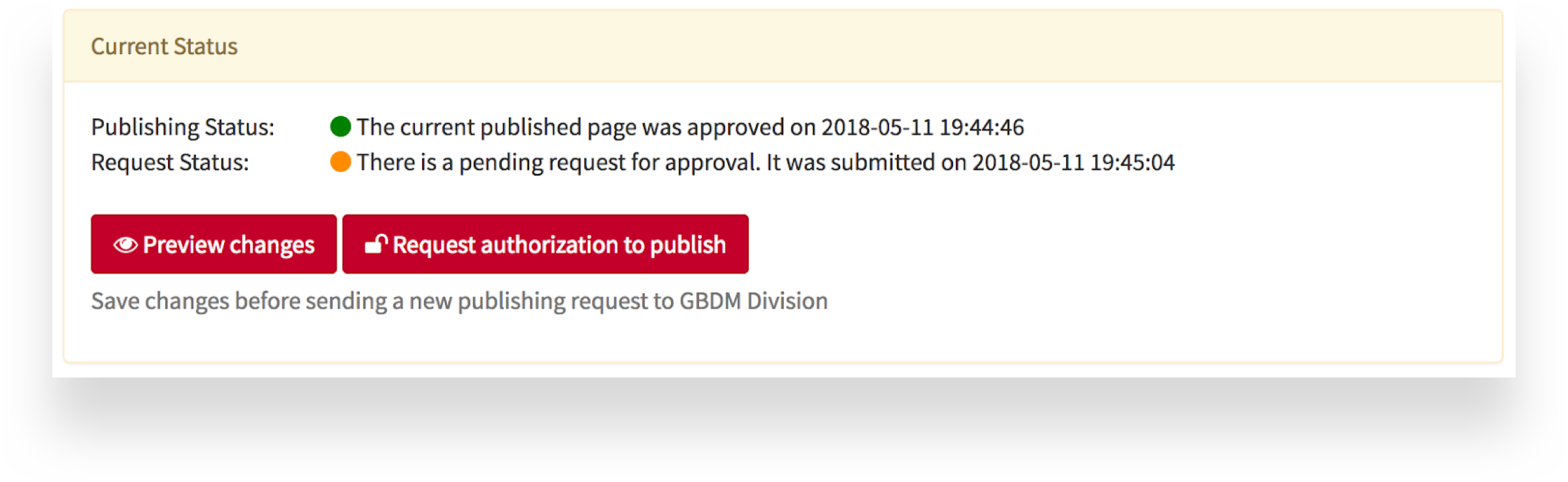
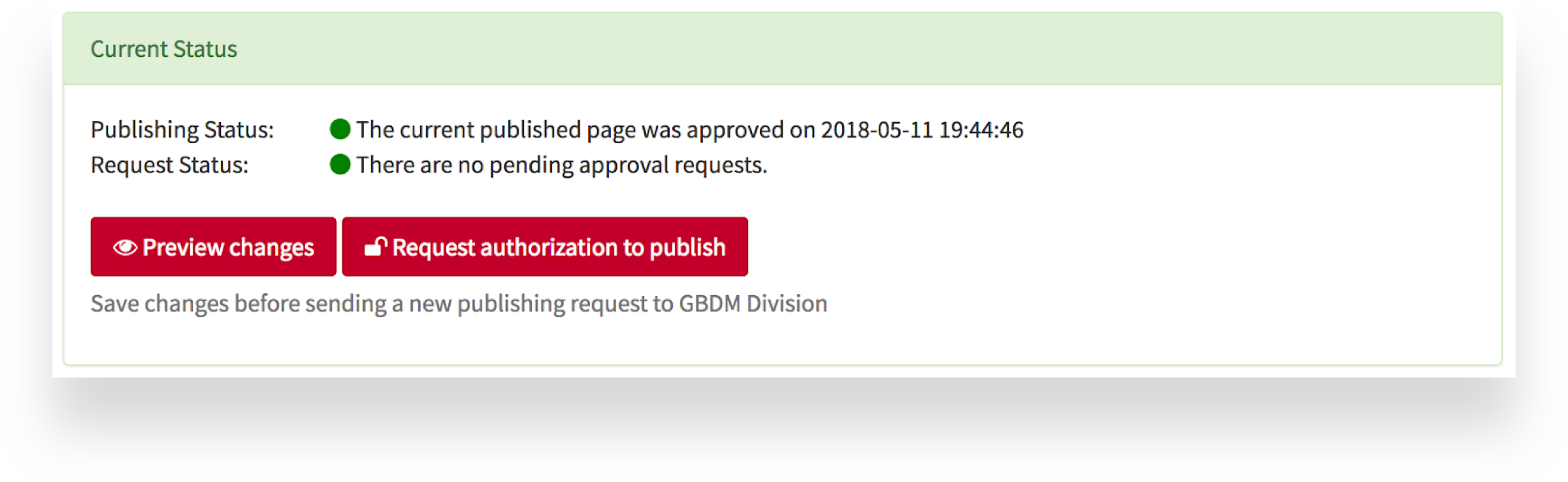
You will receive an email when they approve or reject the page, and the Current publishing status details will be updated. If your changes are approved, the page will be published immediately.
You can request approval by clicking on the Submit page for approval button:
You can preview your page content by clicking Preview changes:
Configuration
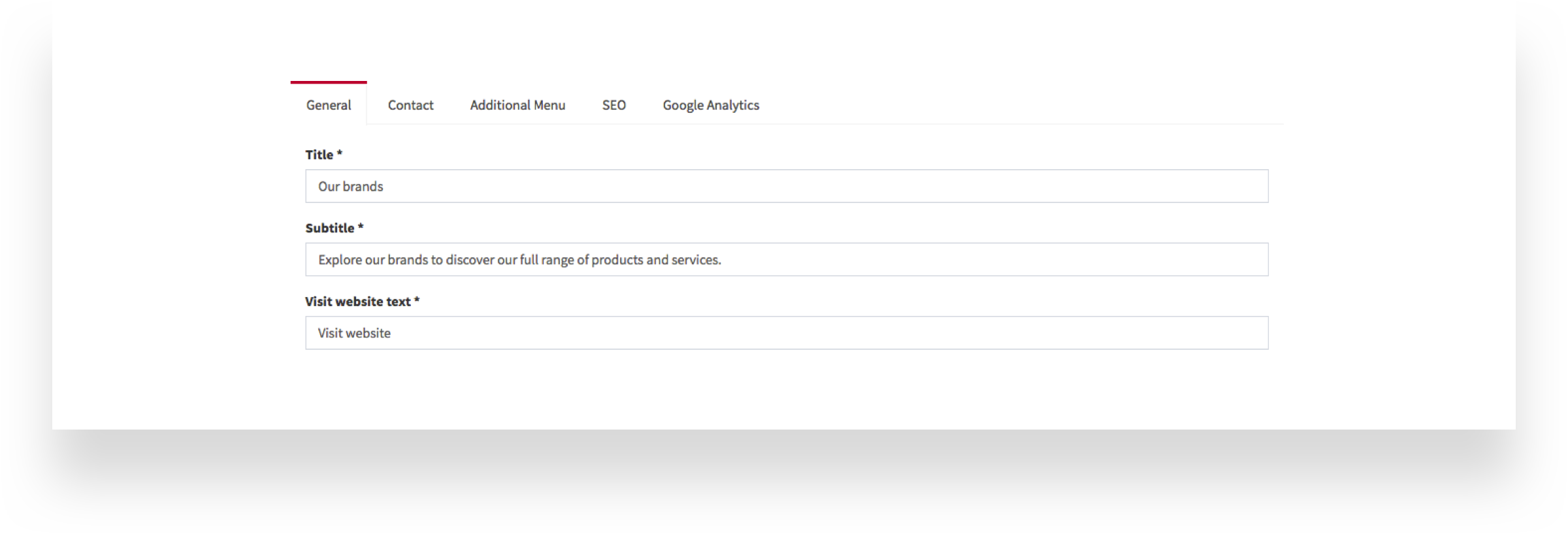
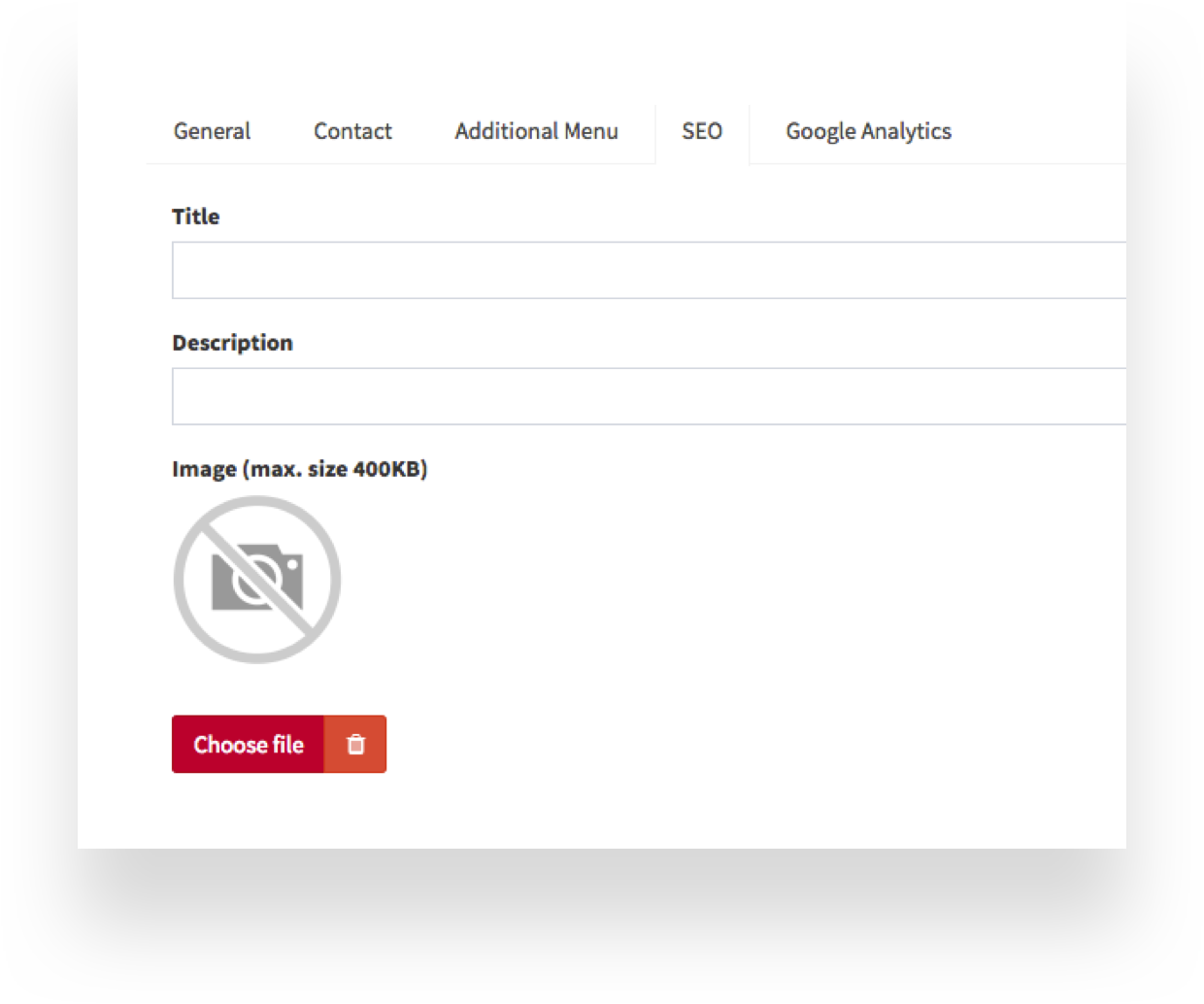
The Configuration section has several tabs. General, Contact, Additional Menu, SEO and Google Analytics.
General
This tab has the following fields:
Title
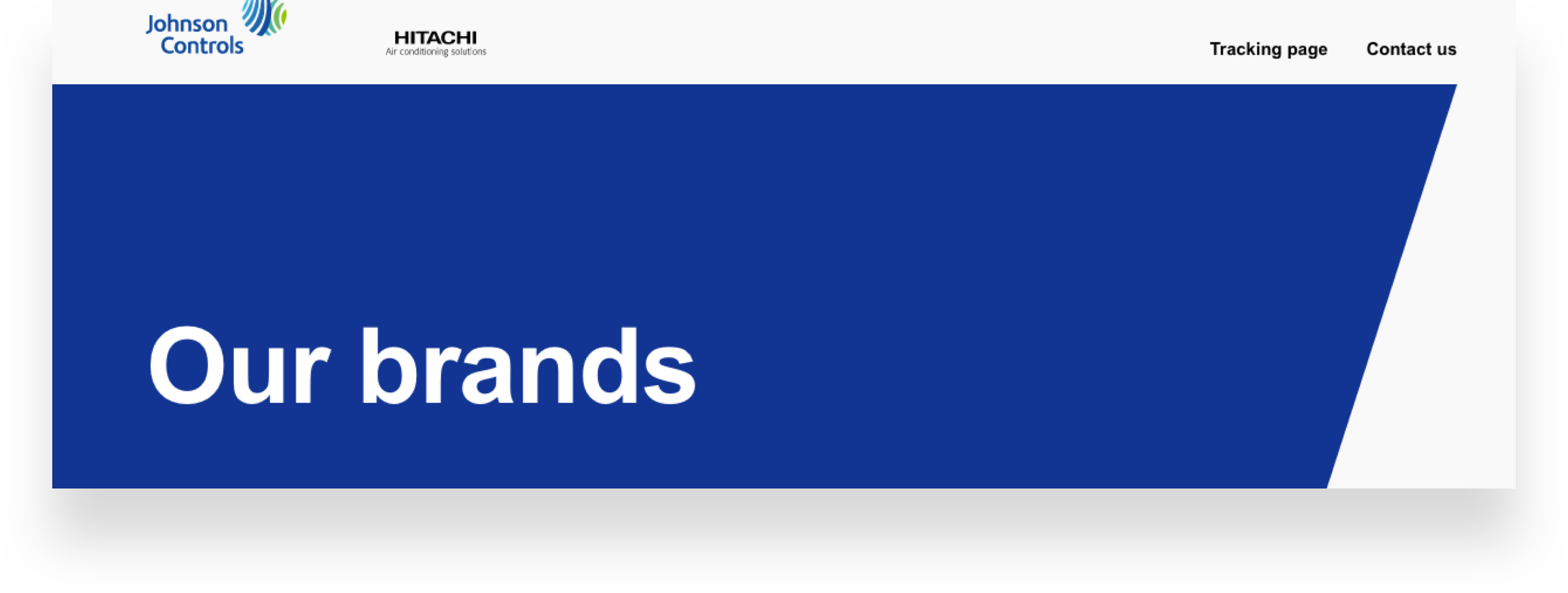
The page title. It appears over a blue background
on the web page.
Subtitle
A short page description which appears below
the title.

Visit Website Text
The link text that leads to the
specific brand page.

You can set the link to appear in a new browser tab by activating Open links in new tab:
Next is Page Links. Here we manage the different brands on the distribution page.
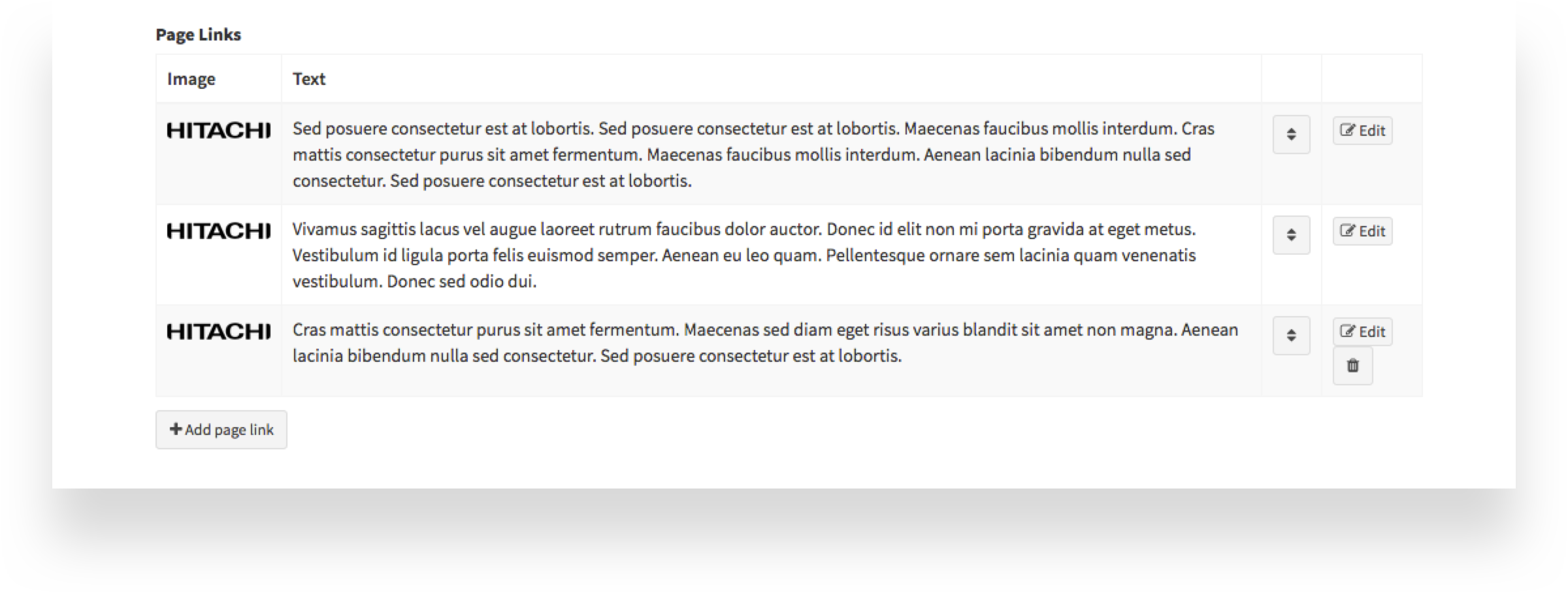
You create a link by clicking Add page link.

Edit links by clicking the Edit button.

You can add a maximum of six links, and there must always be a minimum of two.
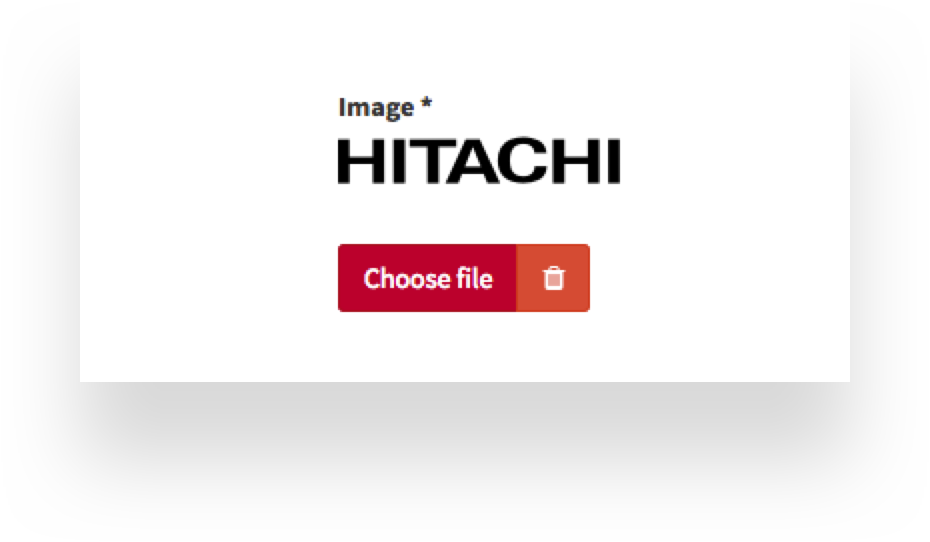
When
you click edit, you’ll see a form. First, you can add or change the image for the brand,
usually the brand logotype.
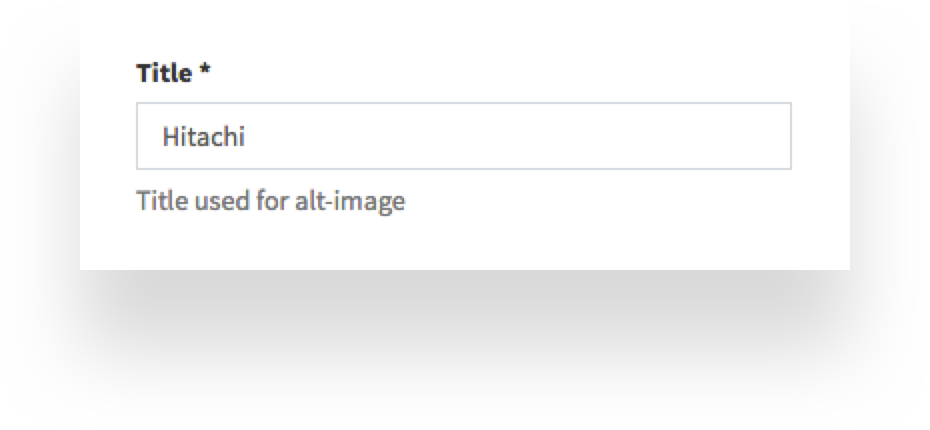
Title
This is the title for the brand, usually the brand
name.
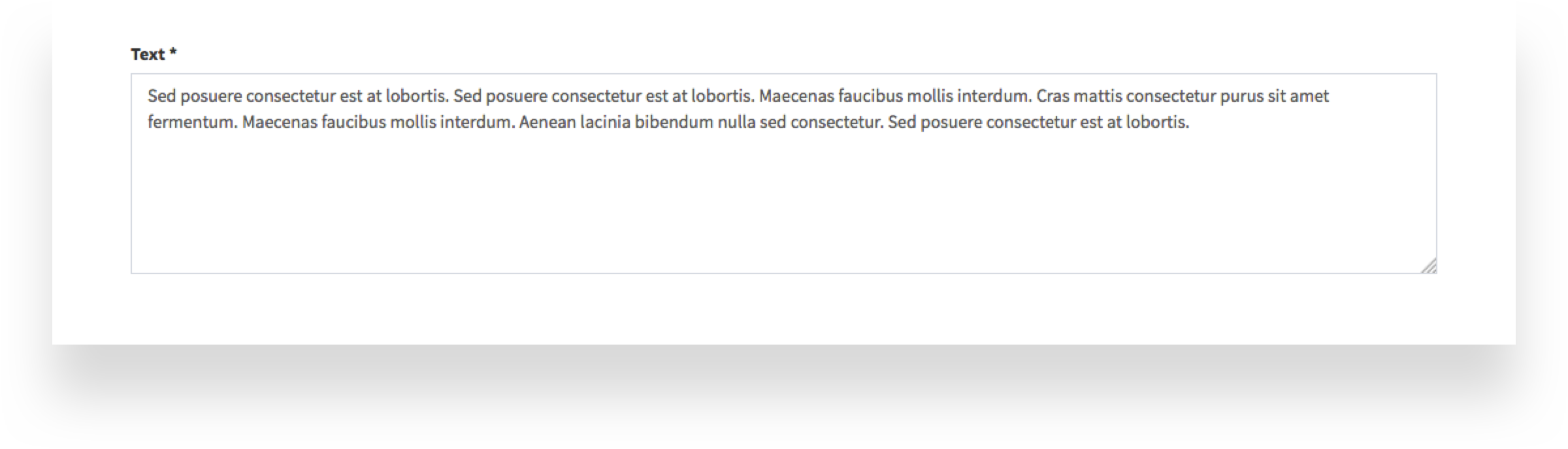
Text
A short description of the brand.
Link url
The link to the brand’s page.
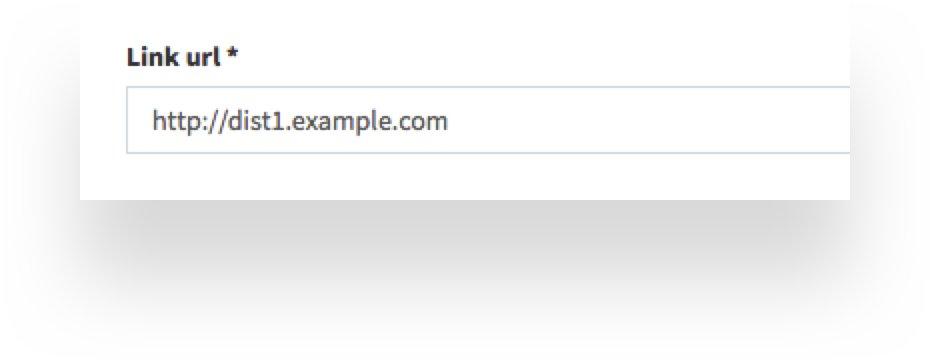
Fields marked with asterisk are mandatory. Finally, click on Save and back to save your changes.
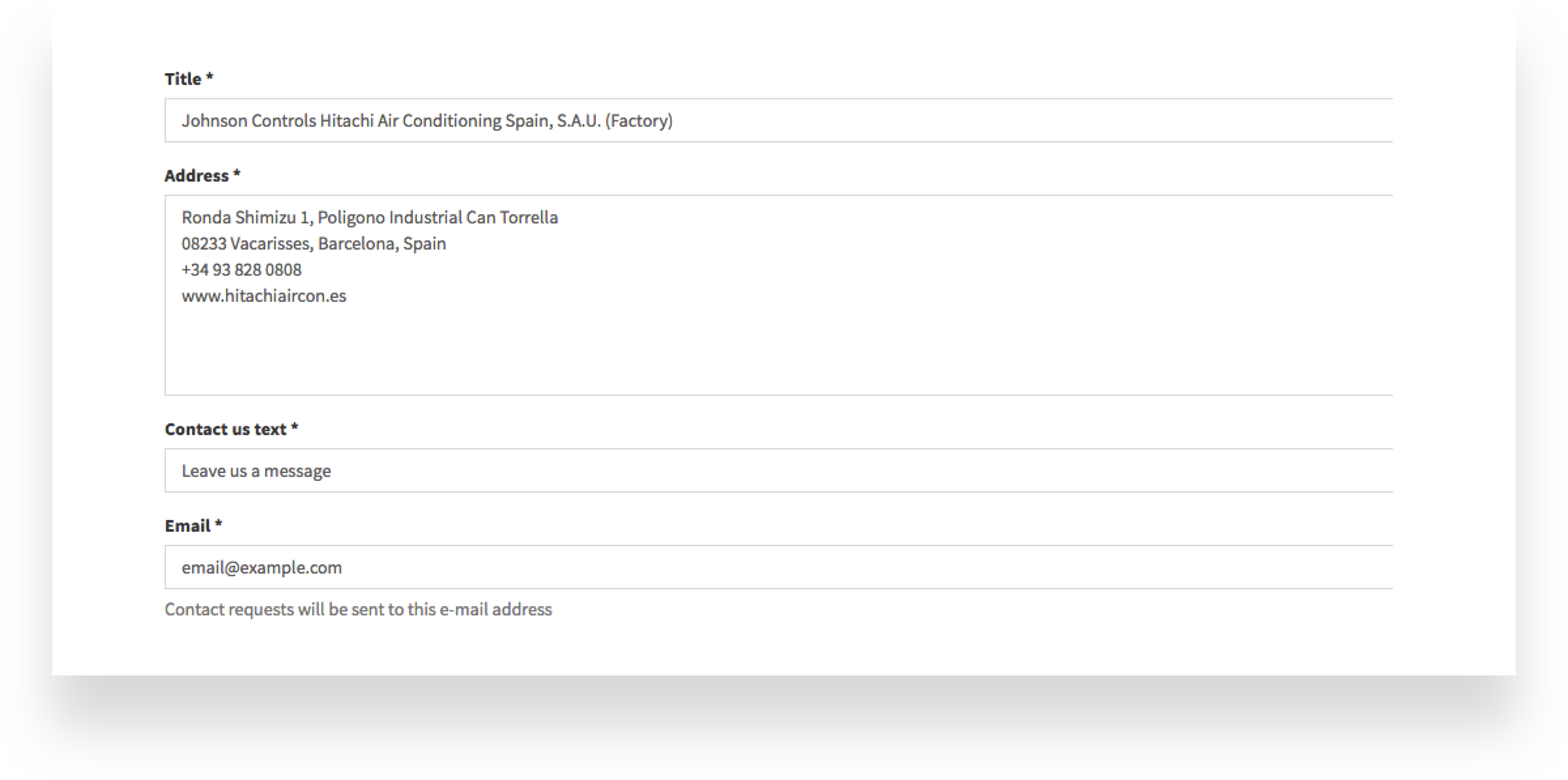
Contact
These are general contact details, in case the user needs further information from Johnson Controls-Hitachi. They will be accessible via the Contact us link on the web page.
The contact tab has Title, Address, Contact us text, and email fields. All the fields on the Contact tab are mandatory.
Extra Menu
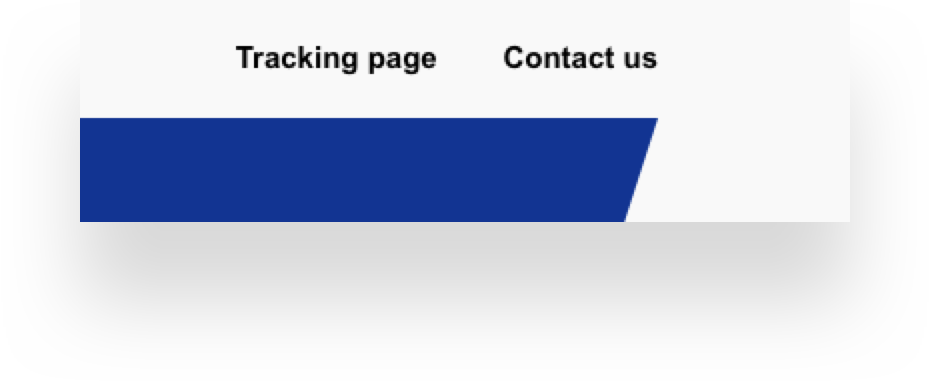
You can add an extra menu item to the page header by activating the Menu is active checkbox.
The new menu item will appear at the top right of the page, on the left of the Contact us link.
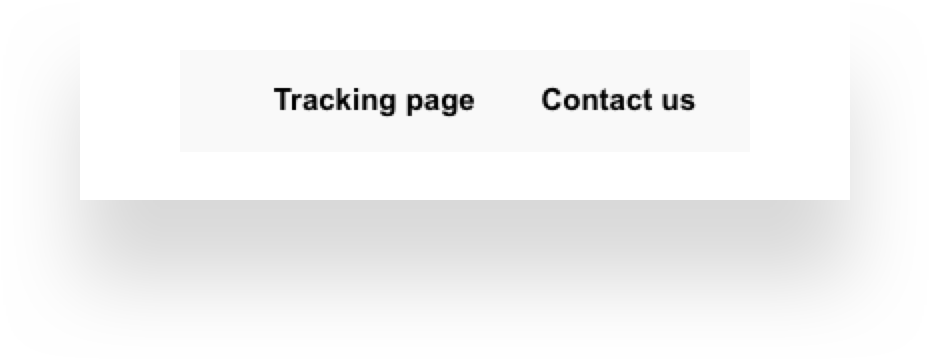
Our example shows a Tracking page link, but it could be any other external link you
may need to add.
Add the menu title and URL link name in Extra Menu Title
and Extra Menu Url fields:
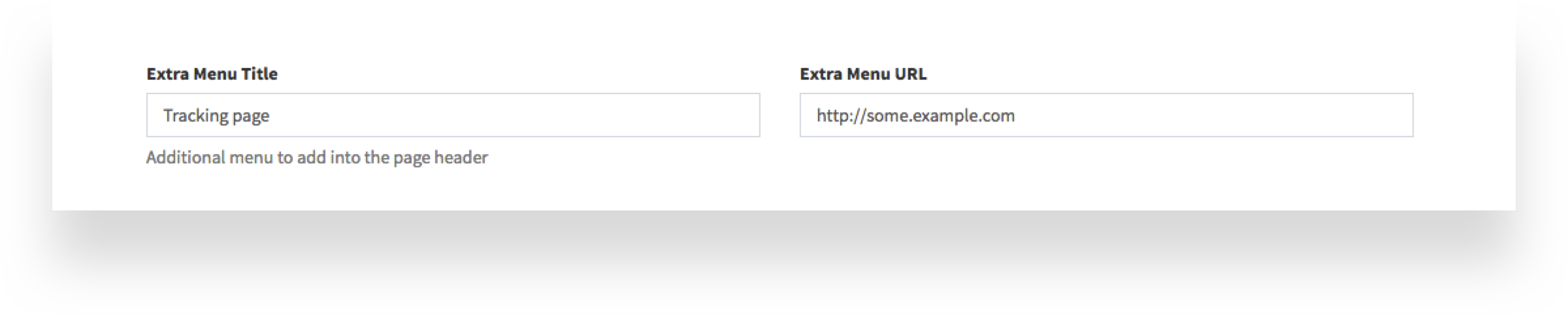
Finally, click on Save and back to save your changes.
SEO
As in other CMS sections, you will need to add the SEO information.
Google Analytics Tracking Code
Paste your Google Analytics Tracking Code, here. Click on Save and back to save your
changes.
Once you have finished editing your page, click Save and back to save
your changes, and then Request authorization to publish, to get the page approved for
publication.
Contact requests
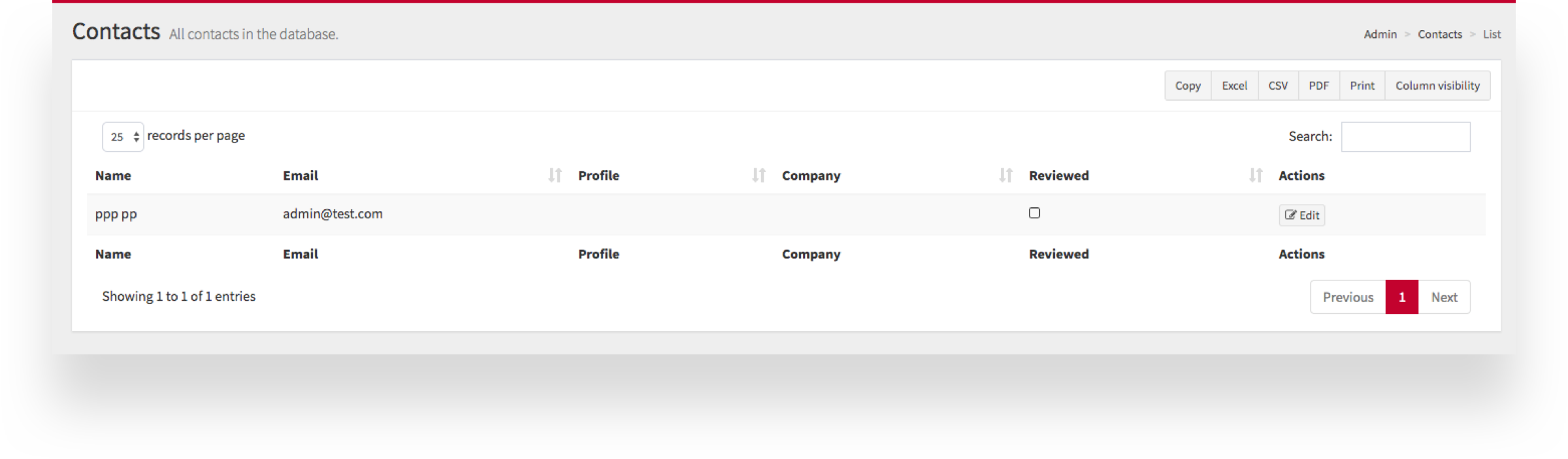
In the Contact Requests section you can can review details for users who have requested
information via the Contact us page.
You can download this information
in a variety of formats by clicking on the selector above the list.
Other Distribution page content
Other Distribution page content is managed through the standard CMS sections.
CMS>Texts
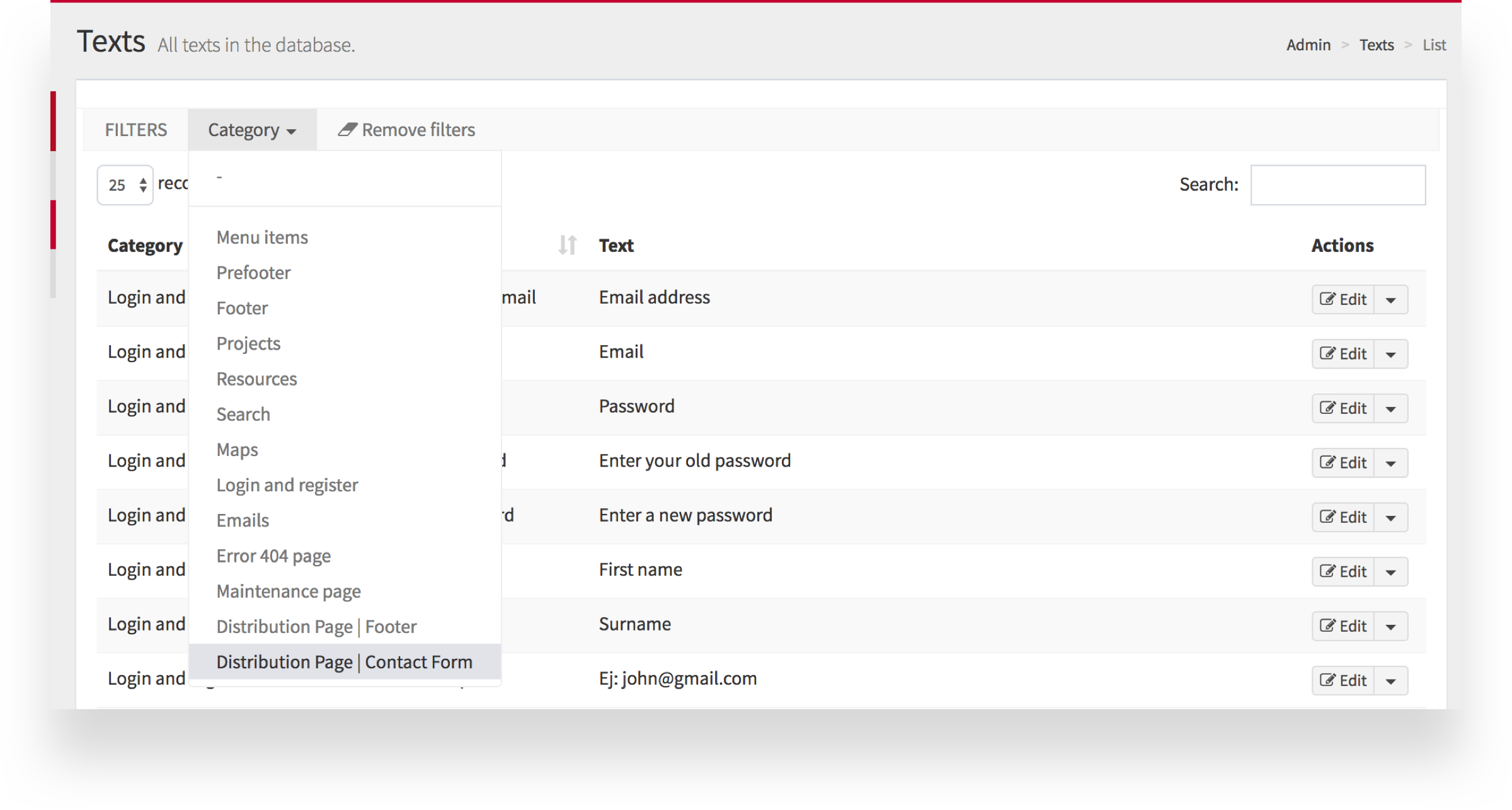
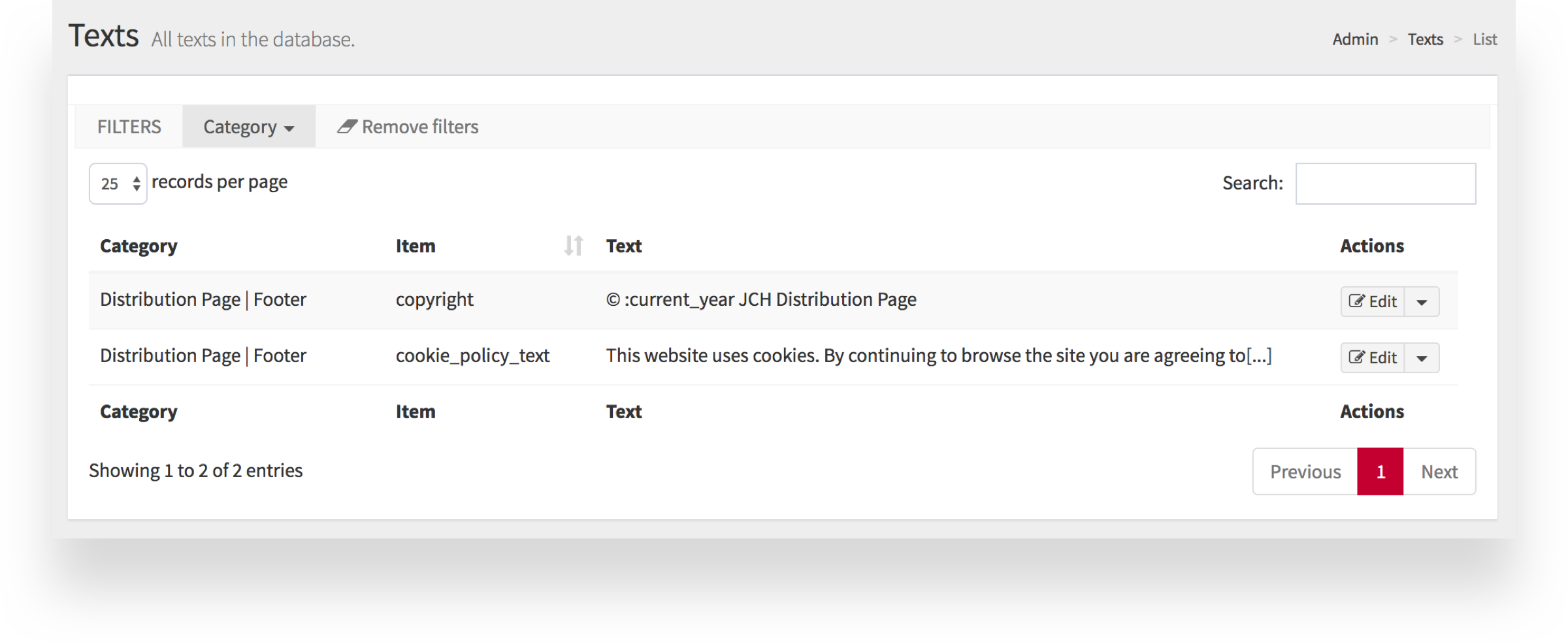
In the CMS>Texts section of the CMS you can manage the Distribution page footer and contact page texts. Filter by category to find the Distribution page contents. For more information on how to this, see the CMS>Texts chapter of this guide.
Contact form
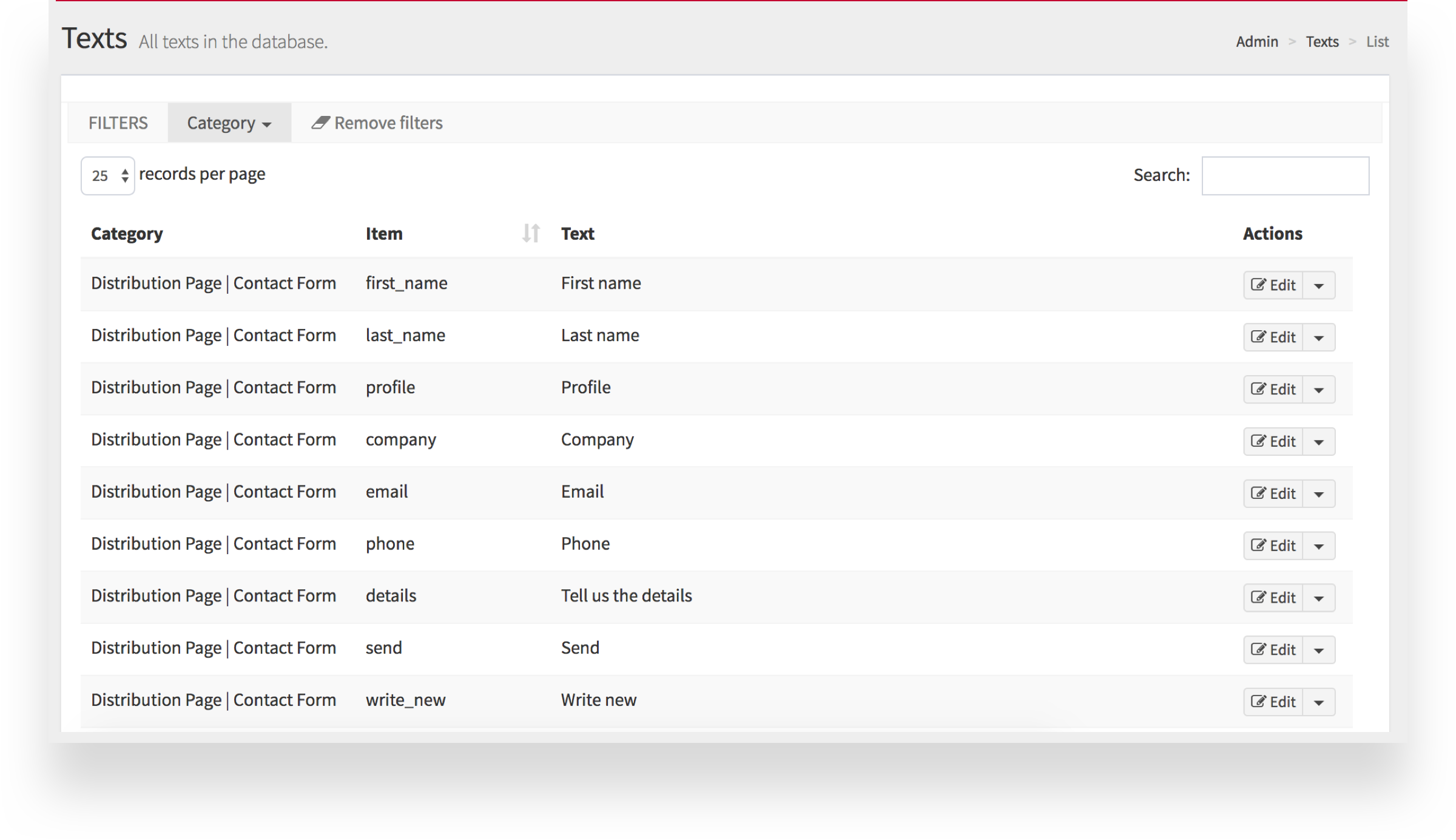
You can edit the labels for the contact form fields. The form has the following fields:
first_name:
User first name.
last_name: User last name.
profile: User job title or
description.
company: Company name.
email: User email address.
phone: User
phone number.
details: The textbox for entering enquiry details.
send: Send
button text.
write_new: Button for when the user wants to submit a new enquiry.
message_sent:
The confirmation message displayed to the user.
Footer
The Distribution page footer has the following fields:
copyright: JCH
Distribution Page copyright details.
cookie_policy_text: Cookie policy agreement form
text.