CMS Guide 2018/10/16
Settings
Settings
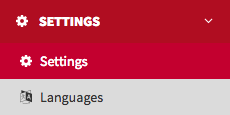
This is where you can manage various CMS and website settings. Click a Edit button to access
a setting.
Maintenance: activate maintenance mode by selecting True. This
will replace the website with the maintenance page, for when you are editing the site. When
signed in to the CMS you will still be able to view the site, even though visitors will see
the maintenance page. To switch back to the website, select False.
Maintenance
Activate
maintenance mode by selecting True. This will replace the website with the
maintenance page. To switch back to the website, select False.
Multi-language
By
selecting True or False you can activate/deactivate the multi-language
option on every page of the website.
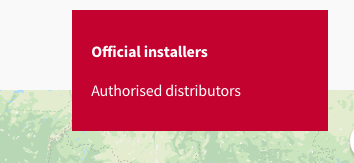
Show one map
By selecting on
True or False in Value you can show one or two maps on the Where to buy
page. If you select True, only one map will be displayed for both installers and
distributors. If you select False, there will be two maps, one for each. You will
be able to switch between the maps using the dropdown that will appear on the page.
Google analytics code
Add your Google analytics code for the website.
Hide
sections
By selecting Projects, Magazine or Service centers
you can hide those sections from the website. When selected, the section will not be
visible in the footer and the drop-down menu.

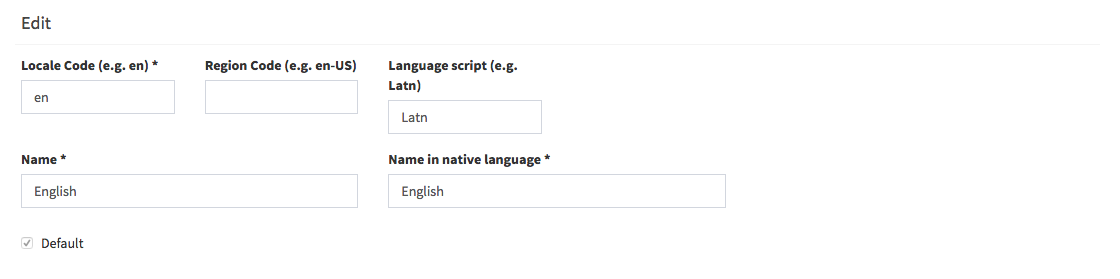
Languages
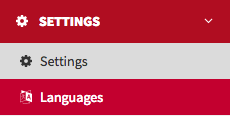
In this section you can create the languages you want to add in order to translate through
the multi-language option.
Fill the fields: Local Code, Name and Name in native
language.